STEP 1 : Uninstall the program responsible for the pop-up ads
In this first step, we will try to identify and remove any malicious program that might be installed on your computer.- Go to the uninstall menu.
- Windows 10 or Windows 8
- Windows 7 or Windows Vista
Windows 10 or Windows 8
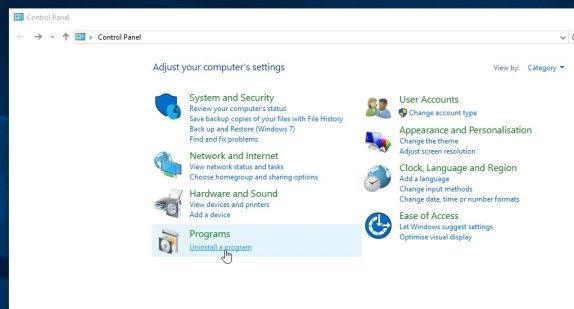
- To uninstall a program on Windows 10 or Windows 8, right-click on the Windows Start button and choose “Control Panel” from the pop-up menu.
- When the “Control Panel” window opens click on the “Uninstall a program” option under “Programs” category.
Windows 7 or Windows Vista
- When the “Programs and Features” screen is displayed, scroll through the list of currently installed programs and uninstall any suspicious programs. Known malicious program: Dns Unlocker, Cinema Plus, Price Minus, SalesPlus, New Player, MediaVideosPlayers, Browsers_Apps_Pro, PriceLEess, Pic Enhance, Sm23mS, Salus, Network System Driver, SS8, Save Daily Deals, Word Proser, Desktop Temperature Monitor, CloudScout Parental Control, Savefier, Savepass, HostSecurePlugin, CheckMeUp and HD-V2.2.The malicious program may have a different name on your computer. To view the most recently installed programs, you can click on the “Installed On” column to sort your program by the installation date. Scroll through the list, and uninstall any unwanted or unknown programs.
If you are having issues while trying to uninstall a program, you can use Revo Uninstaller to completely remove this unwanted program from your machine.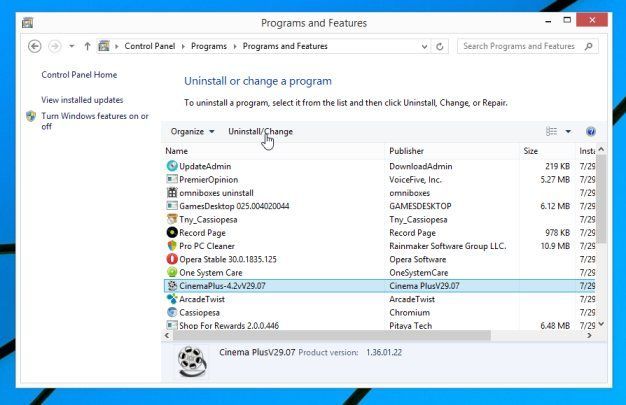
If you cannot find any unwanted or unknown programs on your machine, then you can proceed with the next step.
![[Image: Control Panel in Windows Start Menu]](https://malwaretips.com/blogs/wp-content/uploads/2014/08/windows-start-menu-control-panel.jpg "Control Panel in Windows Start Menu")
![[Image: Uninstall a program]](https://malwaretips.com/blogs/wp-content/uploads/2013/03/uninstall-a-program-windows.jpg "Click on Uninstall a program")
STEP 2: Remove adware from your computer with AdwCleaner
The AdwCleaner utility will scan your computer and web browser for malicious files, adware browser extensions and registry keys, that may have been installed on your computer without your knowledge.- You can download AdwCleaner from the below link.
ADWCLEANER DOWNLOAD LINK (This link will open a new web page from where you can download “AdwCleaner”) - Before starting AdwCleaner, close all open programs and web browsers, then double-click on the AdwCleaner icon.
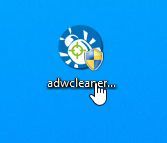
If Windows prompts you as to whether or not you wish to run AdwCleaner, please allow it to run. - When the AdwCleaner program will open, click on the “Scan” button as shown below.
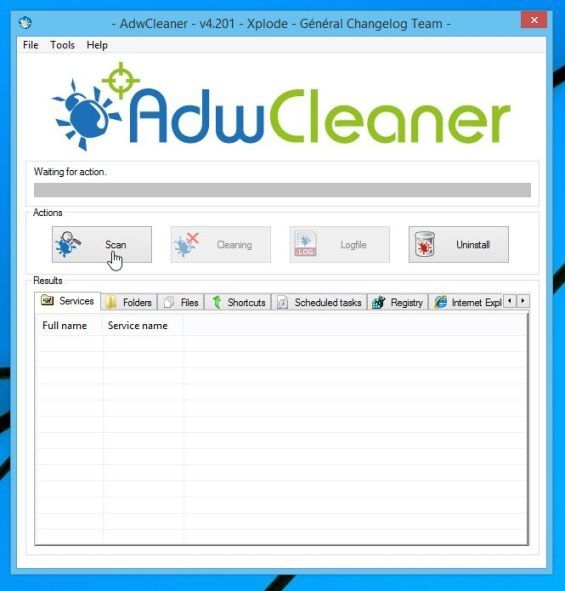
AdwCleaner will now start to search for the any adware that may be installed on your computer. - To remove the malicious files that were detected in the previous step, please click on the “Clean” button.
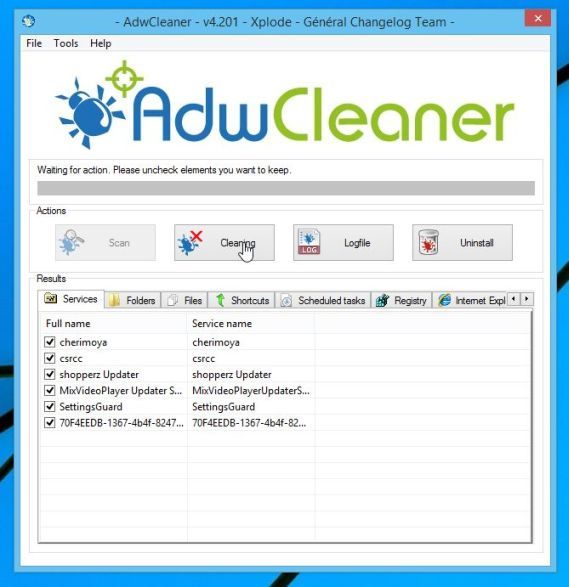
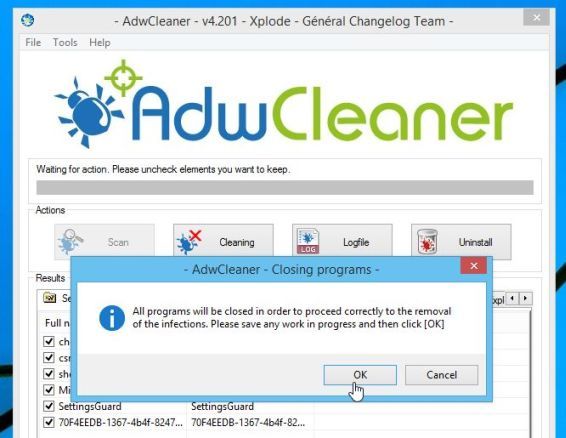
- AdwCleaner will prompt you to save any open files or documents, as the program will need to reboot the computer. Please do so and then click on the OK button.
STEP 3: Remove any browser hijacker with Junkware Removal Tool
Junkware Removal Tool is a powerful utility, which will remove adware and browser hijackers from Internet Explorer, Firefox or Google Chrome.- You can download Junkware Removal Tool utility from the below link:
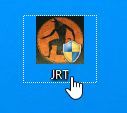
JUNKWARE REMOVAL TOOL DOWNLOAD LINK (This link will automatically download the Junkware Removal Tool utility on your computer) - Once Junkware Removal Tool has finished downloading, please double-click on the JRT.exe icon as seen below.
If Windows prompts you as to whether or not you wish to run Junkware Removal Tool, please allow it to run. - Junkware Removal Tool will now start, and at the Command Prompt, you’ll need to press any key to perform a scan for malware.
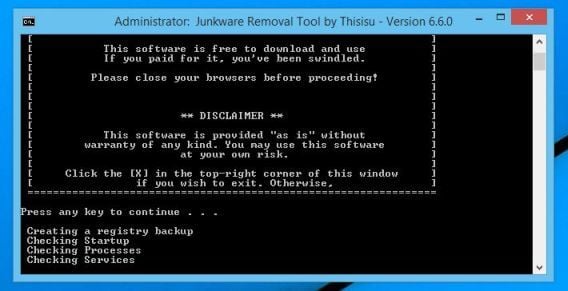
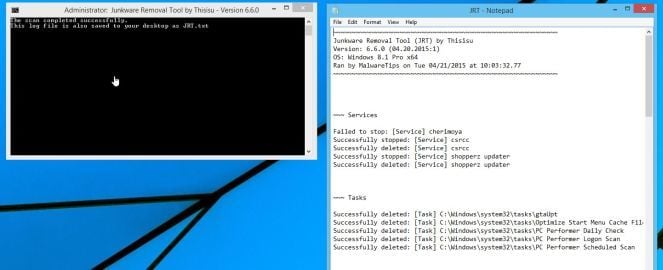
Please be patient as this can take a while to complete (up to 10 minutes) depending on your system’s specifications. - When the scan Junkware Removal Tool will be completed, this utility will display a log with the malicious files and registry keys that were removed from your computer.
STEP 4: Remove potentially unwanted programs and malware with Malwarebytes Anti-Malware
Malwarebytes Anti-Malware Free uses industry-leading technology to detect and remove all traces of malware, including worms, Trojans, rootkits, rogues, dialers, spyware, and more.It is important to note that Malwarebytes Anti-Malware works well and should run alongside antivirus software without conflicts.
- You can download download Malwarebytes Anti-Malware from the below link.
MALWAREBYTES ANTI-MALWARE DOWNLOAD LINK (This link will open a new web page from where you can download “Malwarebytes Anti-Malware Free”) - Once downloaded, close all programs, then double-click on the icon on your desktop named “mbam-setup” to start the installation of Malwarebytes Anti-Malware.
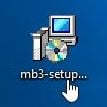
 You may be presented with a User Account Control dialog asking you if you want to run this file. If this happens, you should click “Yes” to continue with the installation.
 - When the installation begins, you will see the Malwarebytes Anti-Malware Setup Wizard which will guide you through the installation process.
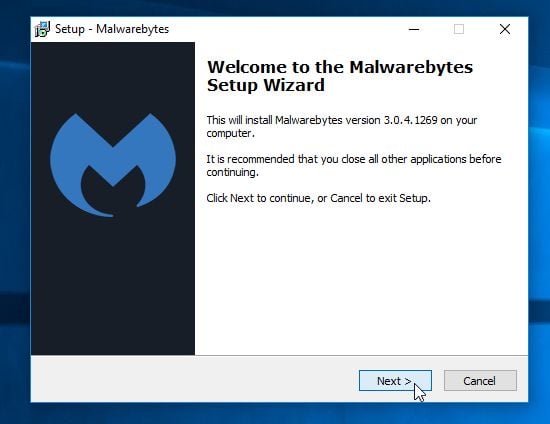
To install Malwarebytes Anti-Malware on your machine, keep following the prompts by clicking the “Next” button.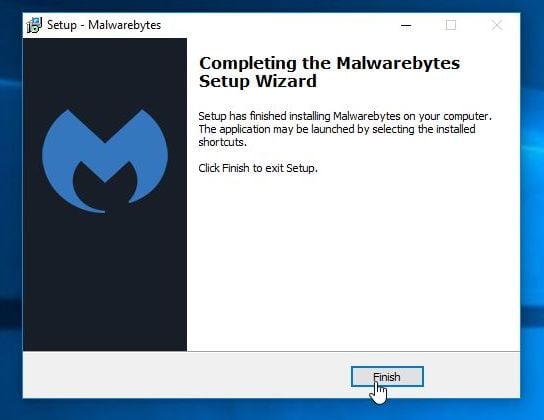
- Once installed, Malwarebytes Anti-Malware will automatically start and you will see a message stating that you should update the program, and that a scan has never been run on your system. To start a system scan you can click on the “Scan Now” button.
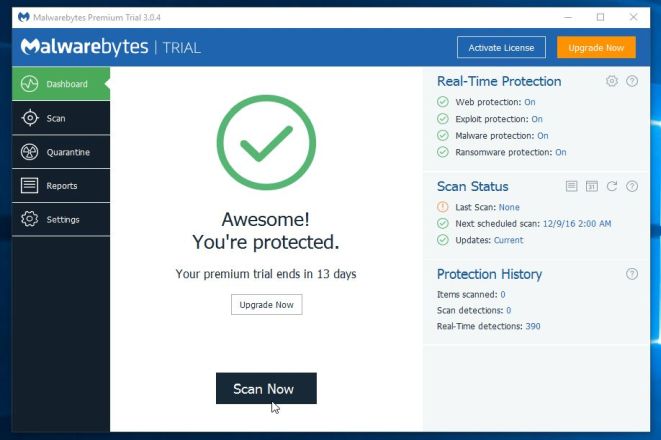
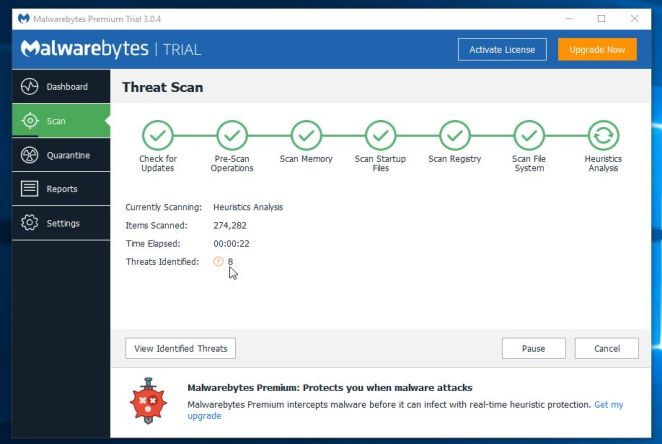
- Malwarebytes Anti-Malware will now start scanning your computer for malware. When Malwarebytes Anti-Malware is scanning it will look like the image below.
- When the scan has completed, you will now be presented with a screen showing you the malware infections that Malwarebytes Anti-Malware has detected. To remove the malicious programs that Malwarebytes Anti-malware has found, click on the “Remove Selected” button.
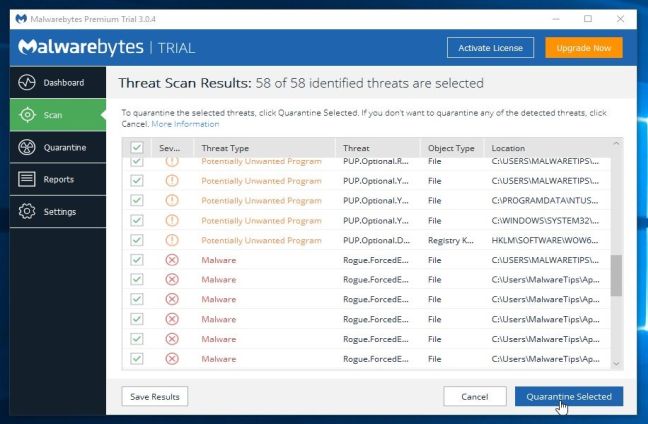
Please note that the infections found may be different than what is shown in the image. - Malwarebytes Anti-Malware will now quarantine all the malicious files and registry keys that it has found. When removing the files, Malwarebytes Anti-Malware may require a reboot in order to remove some of them. If it displays a message stating that it needs to reboot your computer, please allow it to do so.
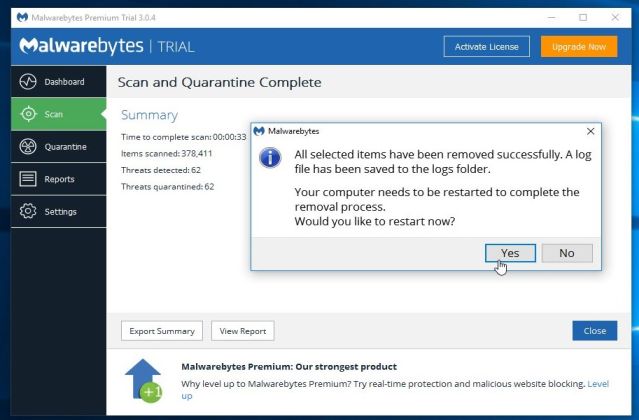
After your computer will restart, you should open Malwarebytes Anti-Malware and perform another “Threat Scan” scan to verify that there are no remaining threats
STEP 5: Double-check for malware with HitmanPro
HitmanPro is a second opinion scanner, designed to rescue your computer from malware (viruses, trojans, rootkits, etc.) that have infected your computer despite all the security measures you have taken (such as anti virus software, firewalls, etc.). HitmanPro is designed to work alongside existing security programs without any conflicts. It scans the computer quickly (less than 5 minutes) and does not slow down the computer.- You can download HitmanPro from the below link:
HITMANPRO DOWNLOAD LINK (This link will open a new web page from where you can download “HitmanPro”) - Double-click on the file named “HitmanPro.exe” (for 32-bit versions of Windows) or “HitmanPro_x64.exe” (for 64-bit versions of Windows). When the program starts you will be presented with the start screen as shown below.
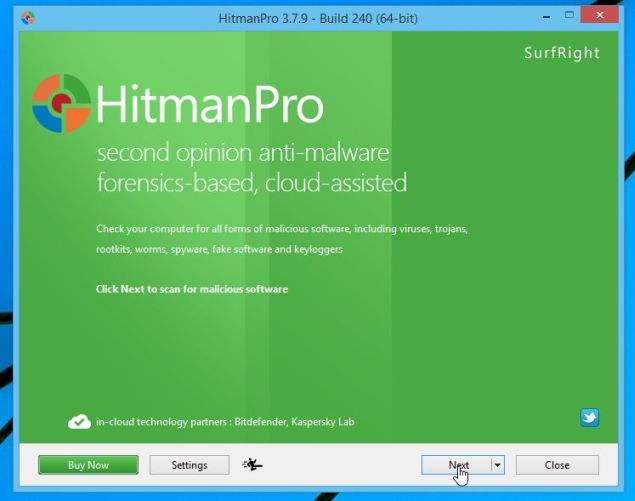
Click on the “Next” button, to install HitmanPro on your computer.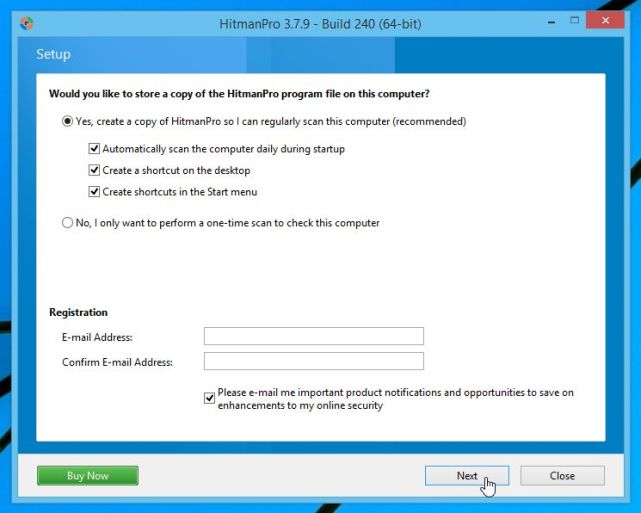
- HitmanPro will now begin to scan your computer for malware.
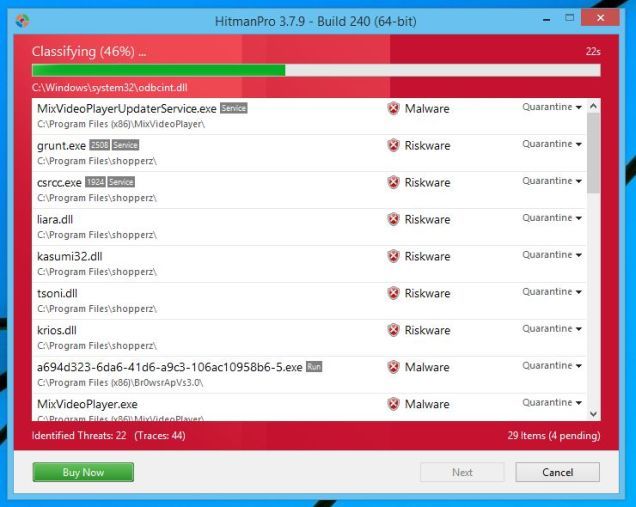
- When it has finished it will display a list of all the malware that the program found as shown in the image below. Click on the “Next” button, to remove malware.
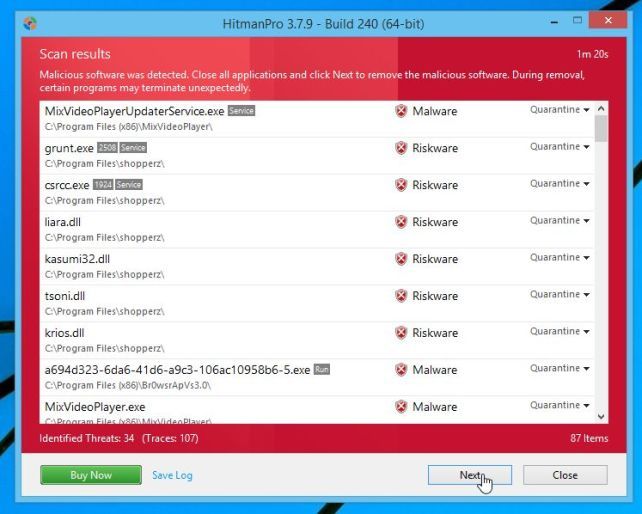
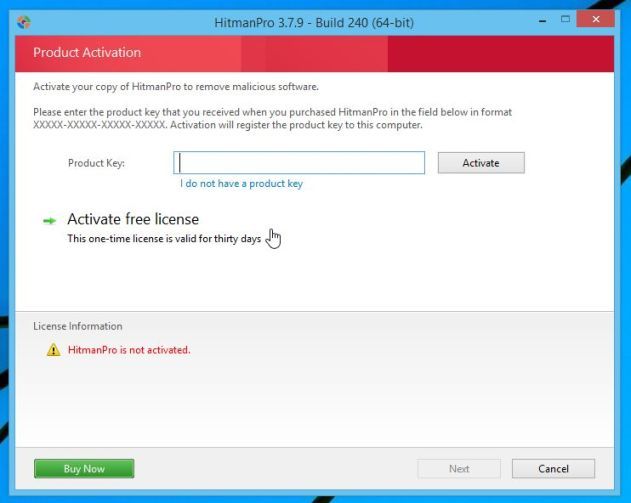
- Click on the “Activate free license” button to begin the free 30 days trial, and remove all the malicious files from your computer.
(Optional) STEP 6: Remove pop-up ads from Internet Explorer, Firefox and Google Chrome
If you are still experiencing issues with the pop-up ads in Internet Explorer, Firefox or Chrome, we will need to reset your browser to its default settings. This step needs to be performed only if your issues have not been solved by the previous steps.- Reset Internet Explorer
- Reset Mozilla Firefox
- Reset Google Chrome
Reset Internet Explorer
You can reset Internet Explorer settings to return them to the state they were in when Internet Explorer was first installed on your PC.
- Open Internet Explorer, click on the “gear icon”
 in the upper right part of your browser, then click again on Internet Options.
![[Image: Internet Options in Internet Explorer]](https://malwaretips.com/blogs/wp-content/uploads/2014/03/Internet-Options-Internet-Explorer.jpg "Click on the Gear Icon then on Internet Options")
- In the “Internet Options” dialog box, click on the “Advanced” tab, then click on the “Reset” button.
![[Image: Reset Internet Explorer]](https://malwaretips.com/blogs/wp-content/uploads/2014/03/Reset-Internet-Explorer.jpg "In the Advanced tab click on the Reset button")
- In the “Reset Internet Explorer settings” section, select the “Delete personal settings” check box, then click on “Reset” button.
![[Image: Reset Internet Explorer to its default settings]](https://malwaretips.com/blogs/wp-content/uploads/2014/03/reset-button-Internet-Explorer.jpg "Click on the Reset button to revert IE to its default settings")
When Internet Explorer has completed its task, click on the “Close” button in the confirmation dialogue box. You will now need to close your browser, and then you can open Internet Explorer again.
![[Image Reset Internet Explorer settings]](https://malwaretips.com/blogs/wp-content/uploads/2014/03/Close-button-Reset.jpg "Click on the Close button")

No comments:
Post a Comment