The CoreMC computer can be equipped with up to dual Xeon 8-core processors (16-cores total), 768GB of RAM, 21TB of hard drive storage, video cards and audio interfaces. Based on the Windows 8 (64-bit) operating system, CoreMC is capable of running any Windows compatible software for music production, HD video editing or even gaming.
Each CoreMC is housed in a black brushed aluminum chassis equipped with four oversized 140mm fans providing ample airflow, yet able to rotate at reduced speeds for near silent operation. A front name plate is part of the design and acts as a baffle to further reduce operational noise. Extras include removable dust filters to keep the interior of the system clean, shock mounting for hard drives and optical drives to reduce noise and vibration, and anti-vibration pads for the power supply. For those needing to overclock the system, four coolant hose ports are provided on the rear of the chassis with star grommets.
Rack versions of the CoreMC are available in a compact 4U (15.25" depth) chassis as well as a full size version with redundant power supplies.
Specifications :
Processor Type: Xeon LGA 2011 Processor Options: 6-core (2.0GHz), 8-core (2.0GHz) and 8-core (2.9GHz) (Single Processor or Dual Processor configuration. Both processors must be the same) Number of RAM Slots: 12 per Processor (24 Total) Size of RAM: 4GB / 8GB / 16GB / 32GB Maximum Amount of RAM: 768GB Drives (2) x 2.5" HD Bay: 128SSD, 256SSD and 512SSD or (5) x 3.5" HD Bay: 1TB(7200RPM), 2TB(7200RPM), 3TB(7200RPM) and 4TB(7200RPM). Optical Drive: DVD / CD Burner and Blu-ray Burner Audio Interface Options: Echo MIA MINI Digital Audio card: (2ins balanced, 2outs balanced, MIDI, S/PDIF, 24bit-96kHz) RME Hammerfall HDSP 9652: (3 x ADAT digital I/O, 1 x SPDIF digital I/O, S/PDIF, 1 x Word clock I/O (BNC), 1 x ADAT Sync In (9-pin D-type), 2 x MIDI I/O, 32 channels high-speed MIDI, 12 channels 96 kHz/24 bit for record and playback on ADAT optical) IF (in/out), MIDI (in/out) +1 direct keyboard MIDI out, Sample Rate (24bit 96KHz) RME HDSPe RayDAT: (36 Inputs / 36 Outputs, 4 x ADAT I/O (up to 192 kHz via S/MUX4), 1 x AES/EBU I/O (192 kHz), 1 x SPDIF I/O (192 kHZ), 2 x MIDI I/O, Supported sample frequencies: Internally 32, 44.1, 48, 64, 88.2, 96, 176.4, 192 kHz. Externally 28 kHz - 200 kHz) Video Options: Included: 1GB High-performance video card. SLI video card: Up to 3-way SLI GTX 680 video cards. Video Processing GPU card: Quadro 6000 card. Music Computing software: SonicSource VSTi (3000+ sounds / 16GB) Microsoft: Windows 8 Professional (64-bit) 4 USB 2.0 Port (external), 4 USB 2.0 headers (internal) FireWire: Optional 400 / 800 MIDI: Optional Ethernet: 1000BASE-T
Light pens were an early form of touchscreen technology, but they worked in a completely different way to modern touchscreens. In old-style computer screens, the picture was drawn by an electron beam that scanned back and forth, just like in a cathode-ray tube television. The pen contained a photoelectric cell that detected the electron beam as it passed by, sending a signal to the computer down a cable. Since the computer knew exactly where the electron beam was at any moment, it could figure out where the pen was pointing. Light pens could be used either to select menu items or text from the screen (similar to a mouse) or, as shown in the picture here, to draw computer graphics.
Drawing on a screen with a light pen back in 1973. Although you can't see it from this photo, the light pen is actually connected to the computer by a long electric cable. Photo by courtesy of NASA Ames Research Center (NASA-ARC).
Different kinds of touchscreen work in different ways. Some can sense only one finger at a time and get extremely confused if you try to press in two places at once. Others can easily detect and distinguish more than one key press at once. These are some of the main technologies:
Resistive
Resistive touchscreens (currently the most popular technology) work a bit like "transparent keyboards" overlaid on top of the screen. There's a flexible upper layer of conducting polyester plastic bonded to a rigid lower layer of conducting glass and separated by an insulating membrane. When you press on the screen, you force the polyester to touch the glass and complete a circuit—just like pressing the key on a keyboard. A chip inside the screen figures out the coordinates of the place you touched.
When you press a resistive touchscreen, you push two conducting layers together so they make contact, a bit like an ordinary computer keyboard.
Capacitive
These screens are made from multiple layers of glass. The inner layer conducts electricity and so does the outer layer, so effectively the screen behaves like two electrical conductors separated by an insulator—in other words, a capacitor. When you bring your finger up to the screen, you alter the electrical field by a certain amount that varies according to where your hand is. Capacitive screens can be touched in more than one place at once. Unlike most other types of touchscreen, they don't work if you touch them with a plastic stylus (because the plastic is an insulator and stops your hand from affecting the electric field).
In a capacitive touchscreen, the whole screen is like a capacitor. When you bring your finger up close, you affect the electric field that exists between the inner and outer glass.
Infrared
Just like the magic eye beams in an intruder alarm, an infrared touchscreen uses a grid pattern of LEDs and light-detector photocells arranged on opposite sides of the screen. The LEDs shine infrared light in front of the screen—a bit like an invisible spider's web. If you touch the screen at a certain point, you interrupt two or more beams. A microchip inside the screen can calculate where you touched by seeing which beams you interrupted. The touchscreen on Sony Reader ebooks (like the one pictured in our top photo) works this way. Since you're interrupting a beam, infrared screens work just as well whether you use your finger or a stylus.
An infrared touchscreen uses the same magic-eye technology that Tom Cruise had to dodge in the movie Mission Impossible. When your fingers move up close, they break invisible beams that pass over the surface of the screen between LEDs on one side and photocells on the other.
Surface Acoustic Wave
Surprisingly, this touchscreen technology detects your fingers using sound instead of light. Ultrasonic sound waves (too high pitched for humans to hear) are generated at the edges of the screen and reflected back and forth across its surface. When you touch the screen, you interrupt the sound beams and absorb some of their energy. The screen's microchip controller figures out from this where exactly you touched the screen.
A surface-acoustic wave screen is a bit like an infrared screen, but your finger interrupts high-frequency sound beams rippling over the surface instead of invisible light beams.
Near field imaging
Have you noticed how an old-style radio can buzz and whistle if you move your hand toward it? That's because your body affects the electromagnetic field that incoming radio waves create in and around the antenna. The closer you get, the more effect you have. Near field imaging (NFI) touchscreens work a similar way. As you move your finger up close, you change the electric field on the glass screen, which instantly registers your touch. Much more robust than some of the other technologies, NFI screens are suitable for rough-and-tough environments (like military use). Unlike most of the other technologies, they can also detect touches from pens, styluses, or hands wearing gloves.
Do you trust online reviews? Now that Amazon is suing more than 1,000 people who allegedly offered to write glowing product reviews for cash, you might reasonably be concerned.Deceptive reviews are commonplace online. Fortunately, there are a few good techniques that can help you tell truth from fiction.
1.
Don't trust yourself
A team of researchers at Cornell University created a computer algorithm for detecting fake hotel reviews by analyzing the language used in legitimate and phony write-ups. The computer programme, Review Skeptic, is accurate about 90% of the time, but humans alone performed poorly at determining the truth teller.
"People are terrible," said professor Claire Cardie, who helped develop the system. "I was very surprised. We just cannot tell the difference much more than chance."
2.
Listen to thr language
Beware of extremes -- overly enthusiastic or negative reviews are red flags. False reviews tend to use more extreme language to get their message across. So if someone says "It is the most comfortable bed ever," perhaps in all caps, take pause.
Additionally, the Cornell researchers found that when it comes to hotels, fake reviewers tended not to talk about the spatial details -- such as the floor or bathroom. Instead, they focused on the reason they were there, such as describing a recent fake vacation or business trip. In practice, this makes sense because someone who has never been to a location might have a tough time describing it accurately.
3.
Junk the jargon
On the flip side, beware of recommendations that read like product manuals. Reviews that repeat the full product name or model number may be an attempt to game the search engine system. And if they use excessive technical or marketing jargon, odds are they aren't providing a genuine review -- most real people don't talk like that.
4.
Review the reviewer
Check out the profile of the person providing the review, said Louis Ramirez, senior features writer with online deal site DealNews. If they only write reviews for a particular company, that's a huge warning sign they could have a vested interest in that business. Some sites let people upload pictures of the item they bought, which can help add credibility.
Amazon verifies some of its reviewers, indicating they actually bought the product (although some of the people it's suing allegedly found ways around that). Some other sites only allow posts from people who've made a purchase there. Look closely on the site for their review policies.
Click on Chrome’s main menu button, represented by three horizontal lines () .When the drop-down menu appears, select the option labeled Settings.
Chrome’s Settings should now be displayed in a new tab or window, depending on your configuration. Next, scroll to the bottom of the page and click on the Show advanced settings link (as seen in the below example).
Chrome’s advanced Settings should now be displayed. Scroll down until the Reset browser settings section is visible, as shown in the example below. Next, click on the Reset browser settings button.
A confirmation dialog should now be displayed, detailing the components that will be restored to their default state should you continue on with the reset process. To complete the restoration process, click on the Reset button.
STEP 1 : Uninstall the program responsible for the pop-up ads
In this first step, we will try to identify and remove any malicious program that might be installed on your computer.
Go to the uninstall menu.
Windows 10 or Windows 8
Windows 7 or Windows Vista
Windows 10 or Windows 8
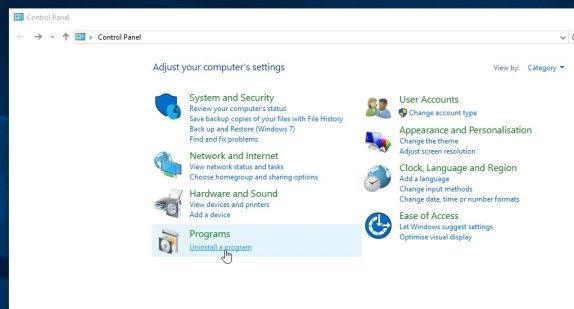
To uninstall a program on Windows 10 or Windows 8, right-click on the Windows Start button and choose “Control Panel” from the pop-up menu.
When the “Control Panel” window opens click on the “Uninstall a program” option under “Programs” category.
Windows 7 or Windows Vista
If you are using Windows XP, Windows Vista or Windows 7, click the “Start” button, then click on the “Control Panel” menu option.
When the “Control Panel” window opens click on the “Uninstall a program” option under “Programs” category.
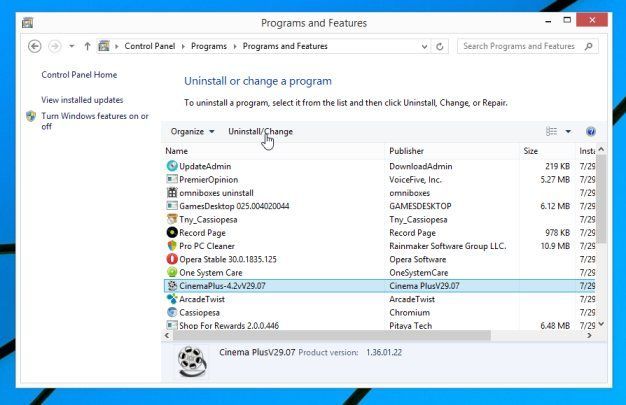
When the “Programs and Features” screen is displayed, scroll through the list of currently installed programs and uninstall any suspicious programs.
Known malicious program: Dns Unlocker, Cinema Plus, Price Minus, SalesPlus, New Player, MediaVideosPlayers, Browsers_Apps_Pro, PriceLEess, Pic Enhance, Sm23mS, Salus, Network System Driver, SS8, Save Daily Deals, Word Proser, Desktop Temperature Monitor, CloudScout Parental Control, Savefier, Savepass, HostSecurePlugin, CheckMeUp and HD-V2.2.
The malicious program may have a different name on your computer. To view the most recently installed programs, you can click on the “Installed On” column to sort your program by the installation date. Scroll through the list, and uninstall any unwanted or unknown programs.
If you are having issues while trying to uninstall a program, you can use Revo Uninstaller to completely remove this unwanted program from your machine.
If you cannot find any unwanted or unknown programs on your machine, then you can proceed with the next step.
STEP 2: Remove adware from your computer with AdwCleaner
The AdwCleaner utility will scan your computer and web browser for malicious files, adware browser extensions and registry keys, that may have been installed on your computer without your knowledge.
You can download AdwCleaner from the below link. ADWCLEANER DOWNLOAD LINK (This link will open a new web page from where you can download “AdwCleaner”)
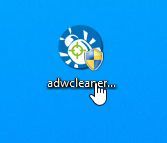
Before starting AdwCleaner, close all open programs and web browsers, then double-click on the AdwCleaner icon. If Windows prompts you as to whether or not you wish to run AdwCleaner, please allow it to run.
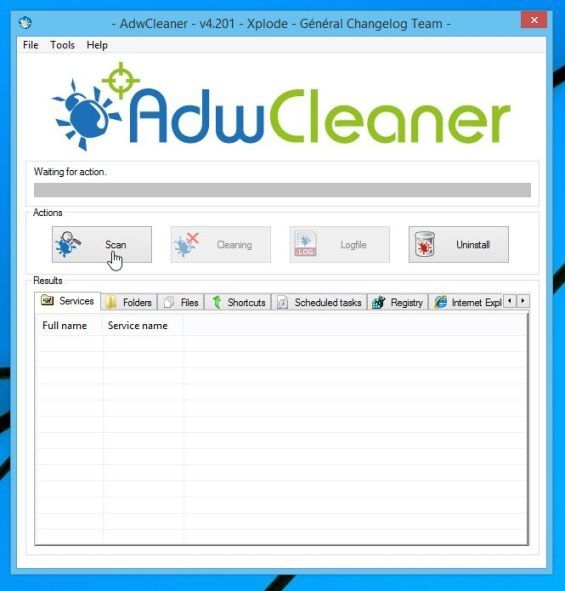
When the AdwCleaner program will open, click on the “Scan” button as shown below. AdwCleaner will now start to search for the any adware that may be installed on your computer.
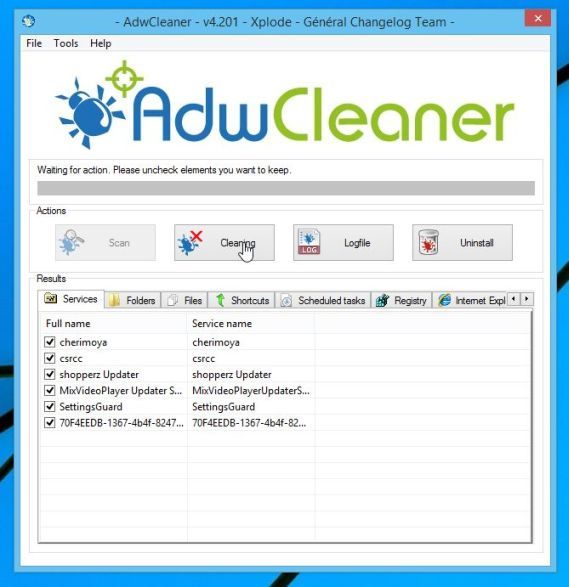
To remove the malicious files that were detected in the previous step, please click on the “Clean” button.
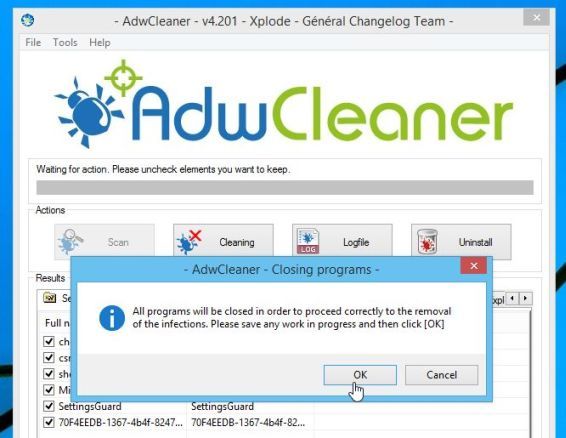
AdwCleaner will prompt you to save any open files or documents, as the program will need to reboot the computer. Please do so and then click on the OK button.
STEP 3: Remove any browser hijacker with Junkware Removal Tool
Junkware Removal Tool is a powerful utility, which will remove adware and browser hijackers from Internet Explorer, Firefox or Google Chrome.
You can download Junkware Removal Tool utility from the below link: JUNKWARE REMOVAL TOOL DOWNLOAD LINK(This link will automatically download the Junkware Removal Tool utility on your computer)
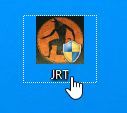
Once Junkware Removal Tool has finished downloading, please double-click on the JRT.exe icon as seen below. If Windows prompts you as to whether or not you wish to run Junkware Removal Tool, please allow it to run.
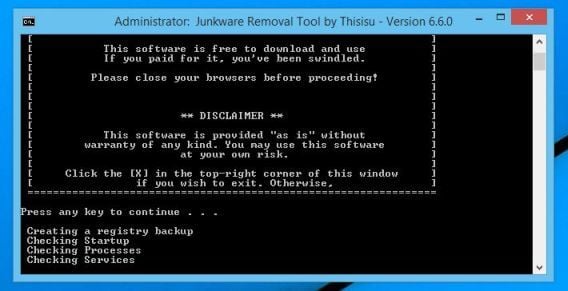
Junkware Removal Tool will now start, and at the Command Prompt, you’ll need to press any key to perform a scan for malware. Please be patient as this can take a while to complete (up to 10 minutes) depending on your system’s specifications.
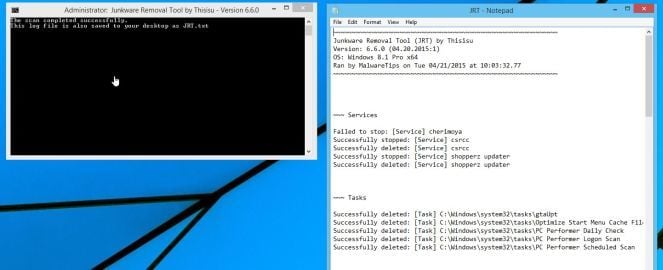
When the scan Junkware Removal Tool will be completed, this utility will display a log with the malicious files and registry keys that were removed from your computer.
STEP 4: Remove potentially unwanted programs and malware with Malwarebytes Anti-Malware
Malwarebytes Anti-Malware Free uses industry-leading technology to detect and remove all traces of malware, including worms, Trojans, rootkits, rogues, dialers, spyware, and more. It is important to note that Malwarebytes Anti-Malware works well and should run alongside antivirus software without conflicts.
You can download download Malwarebytes Anti-Malware from the below link. MALWAREBYTES ANTI-MALWARE DOWNLOAD LINK(This link will open a new web page from where you can download “Malwarebytes Anti-Malware Free”)
Once downloaded, close all programs, then double-click on the icon on your desktop named “mbam-setup” to start the installation of Malwarebytes Anti-Malware. You may be presented with a User Account Control dialog asking you if you want to run this file. If this happens, you should click “Yes” to continue with the installation.
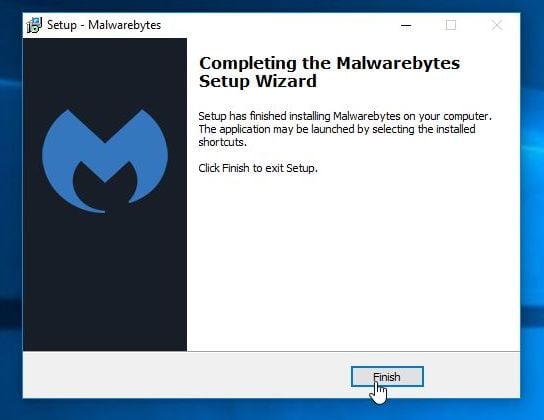
When the installation begins, you will see the Malwarebytes Anti-Malware Setup Wizard which will guide you through the installation process. To install Malwarebytes Anti-Malware on your machine, keep following the prompts by clicking the “Next” button.
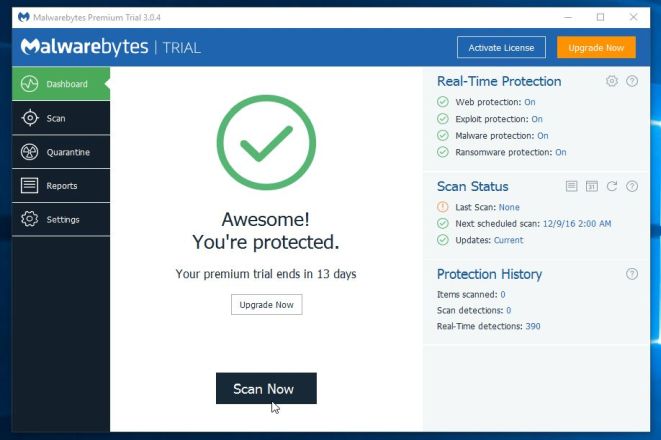
Once installed, Malwarebytes Anti-Malware will automatically start and you will see a message stating that you should update the program, and that a scan has never been run on your system. To start a system scan you can click on the “Scan Now” button.
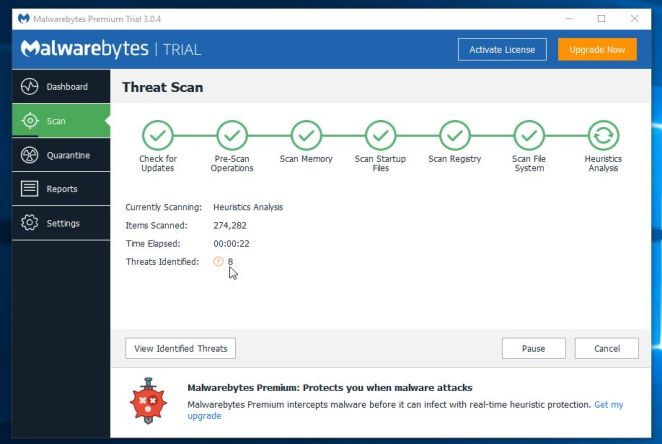
Malwarebytes Anti-Malware will now start scanning your computer for malware. When Malwarebytes Anti-Malware is scanning it will look like the image below.
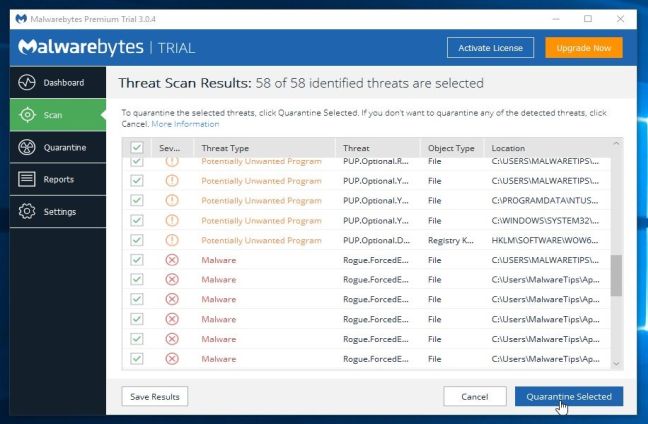
When the scan has completed, you will now be presented with a screen showing you the malware infections that Malwarebytes Anti-Malware has detected. To remove the malicious programs that Malwarebytes Anti-malware has found, click on the “Remove Selected” button. Please note that the infections found may be different than what is shown in the image.
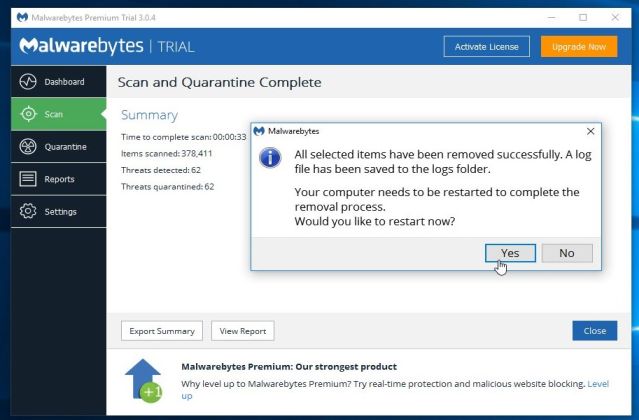
Malwarebytes Anti-Malware will now quarantine all the malicious files and registry keys that it has found. When removing the files, Malwarebytes Anti-Malware may require a reboot in order to remove some of them. If it displays a message stating that it needs to reboot your computer, please allow it to do so. After your computer will restart, you should open Malwarebytes Anti-Malware and perform another “Threat Scan” scan to verify that there are no remaining threats
STEP 5: Double-check for malware with HitmanPro
HitmanPro is a second opinion scanner, designed to rescue your computer from malware (viruses, trojans, rootkits, etc.) that have infected your computer despite all the security measures you have taken (such as anti virus software, firewalls, etc.). HitmanPro is designed to work alongside existing security programs without any conflicts. It scans the computer quickly (less than 5 minutes) and does not slow down the computer.
You can download HitmanPro from the below link: HITMANPRO DOWNLOAD LINK(This link will open a new web page from where you can download “HitmanPro”)
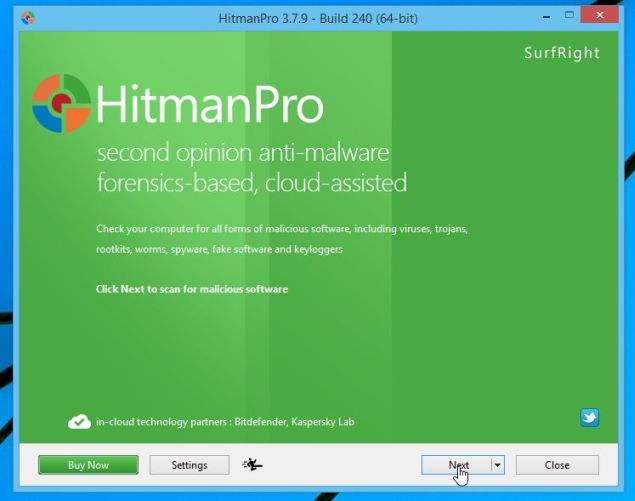
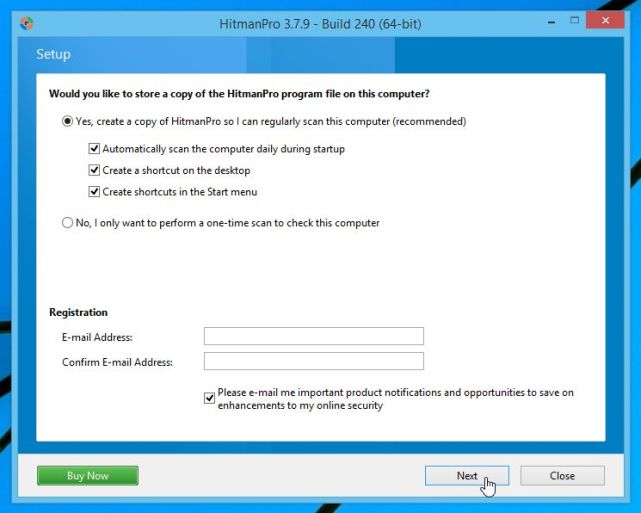
Double-click on the file named “HitmanPro.exe” (for 32-bit versions of Windows) or “HitmanPro_x64.exe” (for 64-bit versions of Windows). When the program starts you will be presented with the start screen as shown below. Click on the “Next” button, to install HitmanPro on your computer.
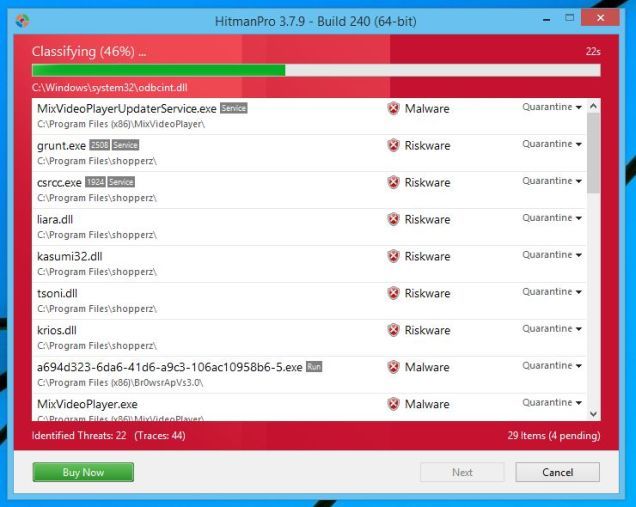
HitmanPro will now begin to scan your computer for malware.
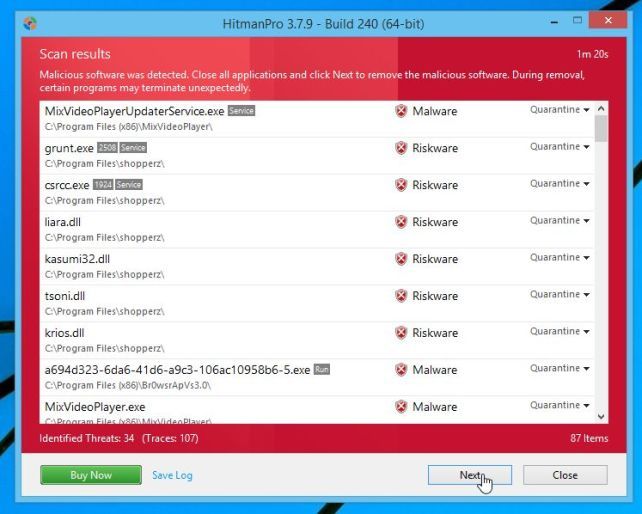
When it has finished it will display a list of all the malware that the program found as shown in the image below. Click on the “Next” button, to remove malware.
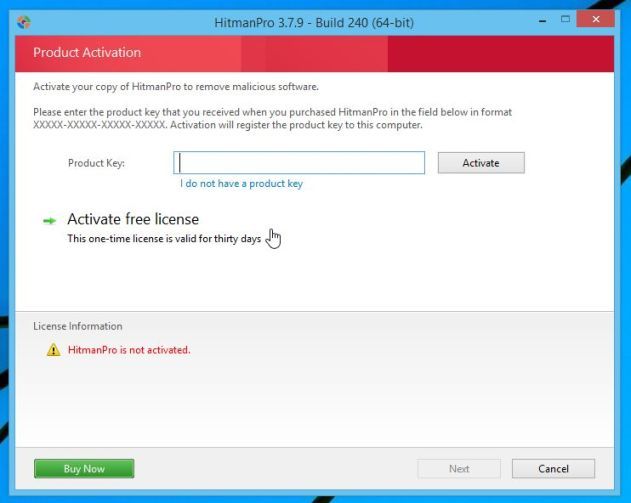
Click on the “Activate free license” button to begin the free 30 days trial, and remove all the malicious files from your computer.
(Optional) STEP 6: Remove pop-up ads from Internet Explorer, Firefox and Google Chrome
If you are still experiencing issues with the pop-up ads in Internet Explorer, Firefox or Chrome, we will need to reset your browser to its default settings. This step needs to be performed only if your issues have not been solved by the previous steps.
Reset Internet Explorer
Reset Mozilla Firefox
Reset Google Chrome
Reset Internet Explorer
You can reset Internet Explorer settings to return them to the state they were in when Internet Explorer was first installed on your PC.
Open Internet Explorer, click on the “gear icon” in the upper right part of your browser, then click again on Internet Options.
In the “Internet Options” dialog box, click on the “Advanced” tab, then click on the “Reset” button.
In the “Reset Internet Explorer settings” section, select the “Delete personal settings” check box, then click on “Reset” button.
When Internet Explorer has completed its task, click on the “Close” button in the confirmation dialogue box. You will now need to close your browser, and then you can open Internet Explorer again.
Keep your PC disconnected from the Internet, and don't use it until you're ready to clean your PC. This can help prevent the malware from spreading and/or leaking your private data.
If you think your PC may have a malware infection, boot your PC into Microsoft's Safe Mode. In this mode, only the minimum required programs and services are loaded. If any malware is set to load automatically when Windows starts, entering in this mode may prevent it from doing so.
To boot into Windows Safe Mode, first shut down your PC. Locate the F8 key on your PC's keyboard; turn the PC on; and as soon as you see anything on the screen, press the F8 key repeatedly. This should bring up the Advanced Boot Options menu; there, select Safe Mode with Networking and press Enter.
You may find that your PC runs noticeably faster in Safe Mode. This could be a sign that your system has a malware infection, or it could mean that you have a lot of legitimate programs that normally start up alongside Windows.
Step 2: Delete Temporary Files
Now that you're in Safe Mode, you'll want to run a virus scan. But before you do that, delete your temporary files. Doing this may speed up the virus scanning, free up disk space, and even get rid of some malware. To use the Disk Cleanup utility included with Windows, select Start, All Programs (or just Programs), Accessories, System Tools, Disk Cleanup.
Step 3: Download Malware Scanners
Now you're ready to have a malware scanner do it's work--and fortunately, running a scanner is enough to remove most infections. If you already had an antivirus program active on your computer, you should use a different scanner for this malware check, since your current antivirus software may have not detected the malware. Remember, no antivirus program can detect 100 percent of the millions of malware types and variants.
There are two types of antivirus programs. You're probably more familiar with real-time antivirus programs, which constantly watch for malware. Another option is on-demand scanners, which search for malware infections when you open the program manually and run a scan. You should have only one real-time antivirus program installed at a time, but you can keep a few on-demand scanners handy to run scans with multiple programs, thereby ensuring that you're covered.
Step 4: Run a Scan With Malwarebytes
For illustrative purposes, I'll describe how to use the Malwarebytes on-demand scanner. To get started, download it. If you disconnected from the Internet for safety reasons when you first suspected that you might be infected, reconnect to it so you can download, install, and update Malwarebytes; then disconnect from the Internet again before you start the actual scanning. If you can't access the Internet or you can't download Malwarebytes on the infected computer, download it on another computer, save it to a USB flash drive, and take the flash drive to the infected computer.
After downloading Malwarebytes, run the setup file and follow the wizard to install the program. Once installed, Malwarebytes will check for updates and launch the app itself. If you get a message about the database being outdated, select Yes to download the updates and then click OK when prompted that they have been successfully installed.
Once the program opens, keep the default scan option ('Perform quick scan') selected and click the Scan button.
Though it offers a full-scan option, Malwarebytes recommends that you perform the quick scan first, as that scan usually finds all of the infections anyway. Depending on your computer, the quick scan can take anywhere from 5 to 20 minutes, whereas the full scan might take 30 to 60 minutes or more. While Malwarebytes is scanning, you can see how many files or objects the software has already scanned, and how many of those files it has identified either as being malware or as being infected by malware.
If Malwarebytes automatically disappears after it begins scanning and won't reopen, you probably have a rootkit or other deep infection that automatically kills scanners to prevent them from removing it. Though you can try some tricks to get around this malicious technique, you might be better off reinstalling Windows after backing up your files (as discussed later), in view of the time and effort you may have to expend to beat the malware.
If Malwarebytes' quick scan doesn't find any infections, it will show you a text file containing the scan results. If you still think that your system may have acquired some malware, consider running a full scan with Malwarebytes and trying the other scanners mentioned earlier. If Malwarebytes does find infections, it'll bring up a dialog box warning you of the discovery. To see what suspect files the scanner detected, click the Scan Results button in the lower right. It automatically selects to remove the ones that are known to be dangerous. If you want to remove other detected items, select them as well. Then click the Remove Selected button in the lower left to get rid of the specified infections. Removing infections in Malwarebytes.
After removing the infections, Malwarebytes will open a text file listing the scan and removal results; skim through these results to confirm that the antivirus program successfully removed each item. Malwarebytes may also prompt you to restart your PC in order to complete the removal process, which you should do.
If your problems persist after you've run the quick scan and it has found and removed unwanted files, consider running a full scan with Malwarebytes and the other scanners mentioned earlier. If the malware appears to be gone, run a full scan with your real-time antivirus program to confirm that result.
Running into a pop-up ad while you're surfing used to be a serious annoyance, but modern browsers include pop-up protection to keep these annoyances away on most sties. If you're still seeing regular pop-ups on more than one site, it could just be a badly-configured browser.
However, if pop-ups are coming at you when your browser isn't even open, it's likely you have a virus. This is especially true if the pop-ups advertise some magic cure-all to your "virus woes"
2. Messages you didn't send
Most viruses have one goal in mind once they infect your computer: to spread the virus as far as possible. An easy way to do that is to send messages to as many of your friends as possible in hopes they'll get infected, too.
3. You're locked out of your computer
You're surfing the Web when suddenly a scary message appears saying you're locked out of your computer. It may claim to be from law enforcement or an anonymous blackmailer.
Either way, the program is lying. What's really happening is that a virus is blocking important programs from running, or even encrypting your files so you can't get to them. The scam is trying to make you pony up some cash to get your computer back. That's why it's commonly called "ransomware."
4. Programs and tools are out of reach
More often than not, a computer user will rely on one simple command when their computer starts misbehaving: Ctrl + Alt + Del. The "three-finger salute" opens up Task Manager, which can tell you so much about your computer.Sometimes, however, you'll hit this keyboard shortcut and nothing happens. You might get a random error message, too. This is a dead giveaway that a virus is messing with your computer. It's stopping Task Manager so you can't see that it's eating your system resources or shut it down.
5. You're not seeing any symptoms at all
No news isn't always good news when it comes to viruses. Powerful viruses can hide deep in your computer without raising any red flags. They'll just go about their business without you even knowing they're there.
Just because you don't notice them doesn't mean they aren't dangerous, though. They could be snagging your passwords, sensitive files or other vital information from your computer. The virus could be using your computer to spread to other computers or even attack banks and other organizations.
ROM is "built-in" computer memory containing data that normally can only be read, not written to. ROM contains the programming that allows your computer to be "booted up" or regenerated each time you turn it on. Unlike a computer's random access memory (RAM), the data in ROM is not lost when the computer power is turned off. The ROM is sustained by a small long-life battery in your computer. (ROM) is a type of non-volatile memory used in computers and other electronic devices. Data stored in ROM can only be modified slowly, with difficulty, or not at all, so it is mainly used to store firmware (software that is closely tied to specific hardware and unlikely to need frequent updates). Strictly, read-only memory refers to memory that is hard-wired, such as diode matrix and the later mask ROM (MROM). Although discrete circuits can be altered in principle, integrated circuits (ICs) cannot and are useless if the data is bad or requires an update. That such memory can never be changed is a disadvantage in some applications. More recently, ROM has come to mean memory that is read-only in normal operation, but a technician using special equipment can erase or reprogram to updating firmware or to correct an error.
Static random-access memory (static RAM or SRAM) is a type of semiconductor memory that uses bistablelatching circuitry (flip-flop) to store each bit. SRAM exhibits data remanence but it is still volatile in the conventional sense that data is eventually lost when the memory is not powered.
The term static differentiates SRAM from DRAM (dynamic random-access memory) which must be periodically refreshed. SRAM is faster and more expensive than DRAM; it is typically used for CPU cache whiSRAM is also used in personal computers, workstations, routers and peripheral equipment: CPU register files, internal CPU caches and external burst mode SRAM caches, hard disk buffers, router buffers, etc. LCD screens and printers also normally employ static RAM to hold the image displayed (or to be printed). Static RAM was used for the main memory of some early personal computers such as the TRS-80 Model 100 and Commodore VIC-20.le DRAM is used for a computer's main memory.
eDRAM stands for "embeddedDRAM", a capacitor-based dynamic random-access memory integrated on the same die or module as an ASIC or processor. eDRAM's cost-per-bit is higher when compared to equivalent standalone DRAM chips used as external memory, but the performance advantages of placing eDRAM onto the same chip as the processor outweigh the cost disadvantages in many applications.
eDRAM is the abbreviation of electrical dynamic random access memory. eDRAM stands for "embedded DRAM", a capacitor-based dynamic random-access memory integrated on the same die or module as an ASIC or processor. eDRAM's cost-per-bit is higher when compared to equivalent standalone DRAM chips used as external memory, but the performance advantages of placing eDRAM onto the same chip as the processor outweigh the cost disadvantages in many applications. eDRAM is used in IBM's POWER7 processor, Intel's Haswell CPUs with GT3e integrated graphics, and in many game consoles and other devices, including Sony's PlayStation 2, Sony's PlayStation Portable, Nintendo's GameCube, Nintendo's Wii, Nintendo's Wii U, Apple Inc.'s iPhone, Microsoft's Zune HD, and Microsoft's Xbox 360 and Xbox One. eDRAM is also the key feature of intel 5th gen Broadwell CPUs .
A microprocessor chip that uses light, rather than electricity, to transfer data at rapid speeds while consuming minute amounts of energy has been developed by researchers, including those of Indian-origin.
The new technology could pave the way for faster, more powerful computing systems and network infrastructure.
"Light based integrated circuits could lead to radical changes in computing and network chip architecture in applications ranging from smartphones to supercomputers to large data centres, something computer architects have already begun work on in anticipation of the arrival of this technology," said Milos Popovic, assistant professor at the University of Colorado Boulder in US.
Traditional microprocessor chips - found in everything from laptops to supercomputers - use electrical circuits to communicate with one another and transfer information.
In recent years, however, the sheer amount of electricity needed to power the ever-increasing speed and volume of these data transfers has proven to be a limiting factor.
To overcome this obstacle, the researchers including Rajesh Kumar also from CU-Boulder turned to photonics, or light-based, technology.
Sending information using light rather than electricity reduces a microchip's energy burden because light can be sent across longer distances using the same amount of power.
"One advantage of light based communication is that multiple parallel data streams encoded on different colours of light can be sent over one and the same medium in this case, an optical wire waveguide on a chip, or an off-chip optical fibre of the same kind that as those that form the Internet backbone," said Popovic, whose team developed the technology in collaboration with a team led by Rajeev Ram, a professor at Massachusetts Institute of Technology (MIT).
"Another advantage is that the infrared light that we use and that also TV remotes use has a physical wavelength shorter than 1 micron, about one hundredth of the thickness of a human hair," said Popovic.
"This enables very dense packing of light communication ports on a chip, enabling huge total bandwidth," he said.
The new chip has a bandwidth density of 300 gigabits per second per square millimetre, about 10 to 50 times greater than current packaged electrical-only microprocessors.
Measuring just 3 millimetres by 6 millimetres, the chip bridges the gap between current high-speed electronics manufacturing and the needs of next-generation computing for chips with large-scale integrated light circuits.


![[Image: Chrome's main menu button]](https://malwaretips.com/blogs/wp-content/uploads/2014/02/reset-Chrome-button.png "Google Chrome's main menu button") ) .When the drop-down menu appears, select the option labeled Settings.
) .When the drop-down menu appears, select the option labeled Settings.![[Image: Click on Settings button]](https://malwaretips.com/blogs/wp-content/uploads/2014/02/Reset-Chrome-Settings-1.jpg "Click on Settings button")
![[Image: Click on Show advanced settings link]](https://malwaretips.com/blogs/wp-content/uploads/2014/02/Reset-Chrome-Settings-2.jpg "Click on Show advanced settings link")
![[Image: Click on Reset browser button]](https://malwaretips.com/blogs/wp-content/uploads/2014/02/Reset-Chrome-Settings-3.jpg "Click on Reset browser button")
![[Image: Click on Reset button to restore Chrome to default settings]](https://malwaretips.com/blogs/wp-content/uploads/2014/02/Reset-Chrome-Settings-4.jpg "Click on Reset button to restore Chrome to default settings")
![[Image: Control Panel in Windows Start Menu]](https://malwaretips.com/blogs/wp-content/uploads/2014/08/windows-start-menu-control-panel.jpg "Control Panel in Windows Start Menu")
![[Image: Uninstall a program]](https://malwaretips.com/blogs/wp-content/uploads/2013/03/uninstall-a-program-windows.jpg "Click on Uninstall a program")
 You may be presented with a User Account Control dialog asking you if you want to run this file. If this happens, you should click “Yes” to continue with the installation.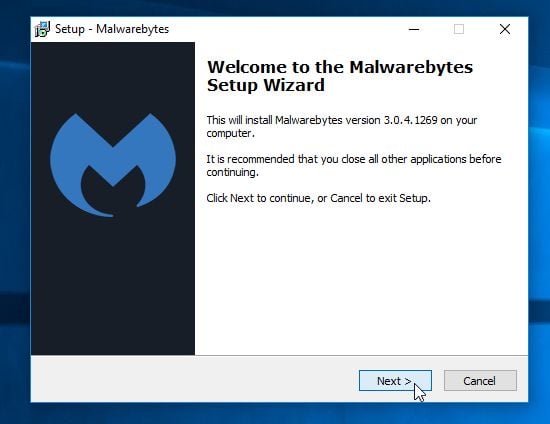
 in the upper right part of your browser, then click again on Internet Options.
![[Image: Internet Options in Internet Explorer]](https://malwaretips.com/blogs/wp-content/uploads/2014/03/Internet-Options-Internet-Explorer.jpg "Click on the Gear Icon then on Internet Options")
![[Image: Reset Internet Explorer]](https://malwaretips.com/blogs/wp-content/uploads/2014/03/Reset-Internet-Explorer.jpg "In the Advanced tab click on the Reset button")
![[Image: Reset Internet Explorer to its default settings]](https://malwaretips.com/blogs/wp-content/uploads/2014/03/reset-button-Internet-Explorer.jpg "Click on the Reset button to revert IE to its default settings")
![[Image Reset Internet Explorer settings]](https://malwaretips.com/blogs/wp-content/uploads/2014/03/Close-button-Reset.jpg "Click on the Close button")


